
Email notification preferences per project
You control your own email notification preferences, and you set them separately for each project. Everyone in your organization starts subscribed to every alert type and to the weekly project summary, so the only reason to open these settings is to turn something off. Whatever you change affects your own inbox alone, never a teammate's.
Where notification preferences live
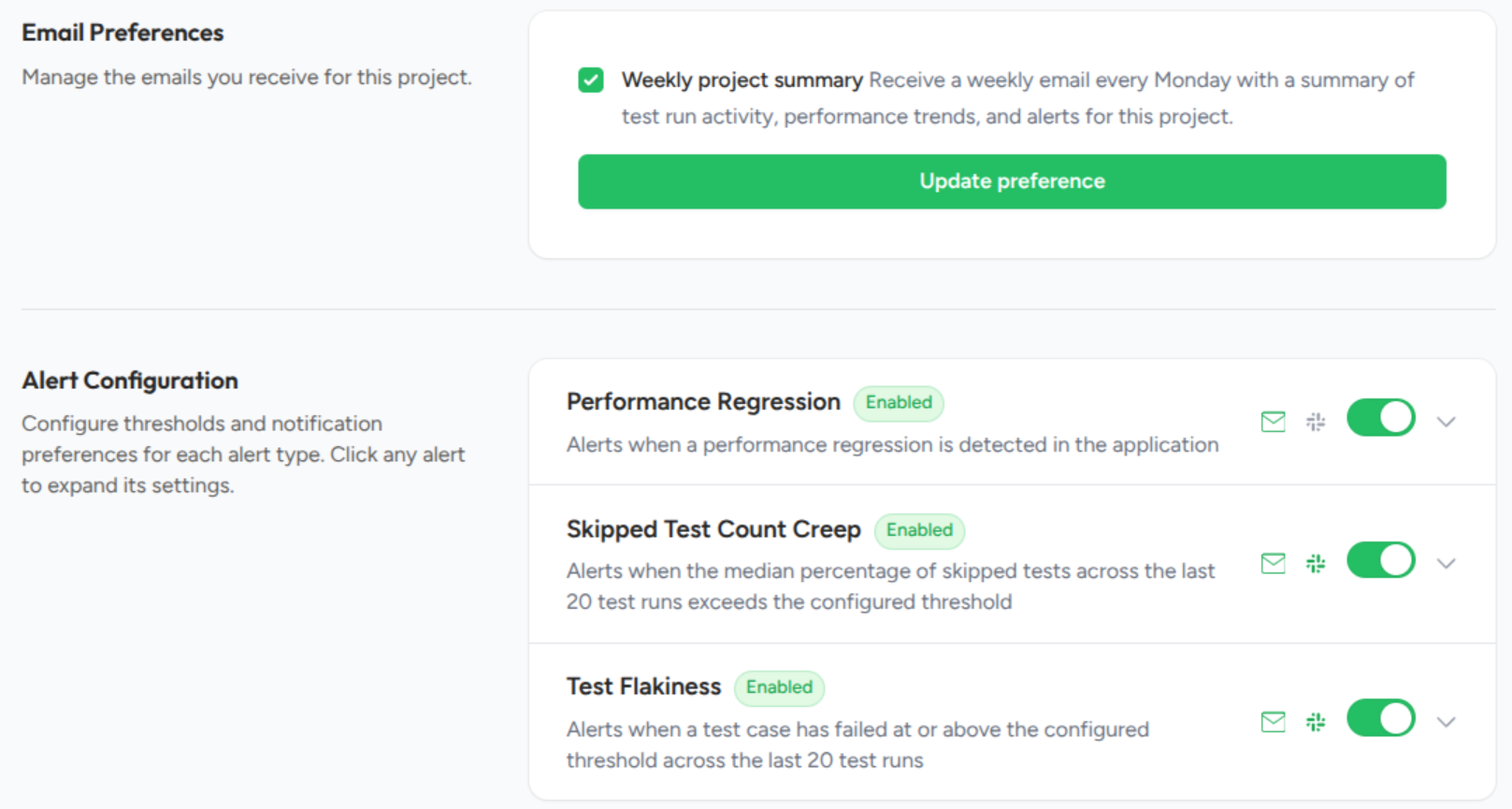
Both controls sit on the project's Settings page, split across two cards:
- Email Preferences holds the Weekly project summary toggle.
- Alert Configuration holds a separate email toggle for each alert type.
Turn the weekly project summary on or off
In the Email Preferences card, set the Weekly project summary toggle to the state you want and click Update preference to save it. The change applies to this one project's weekly summary, so you can switch off a project you don't follow closely while still getting summaries for the rest.
Turn alert emails on or off
The Alert Configuration card lists every alert type, and the email icon on each row shows your current status without expanding anything: green means you'll be emailed when that alert fires, and grey means you won't. Hover over the icon and it tells you which.
To change it, click the alert type to expand its settings, then look under Notify Via → Personal and check or uncheck Email me at [your address]. The change saves the moment you toggle it, and it applies to your account alone.
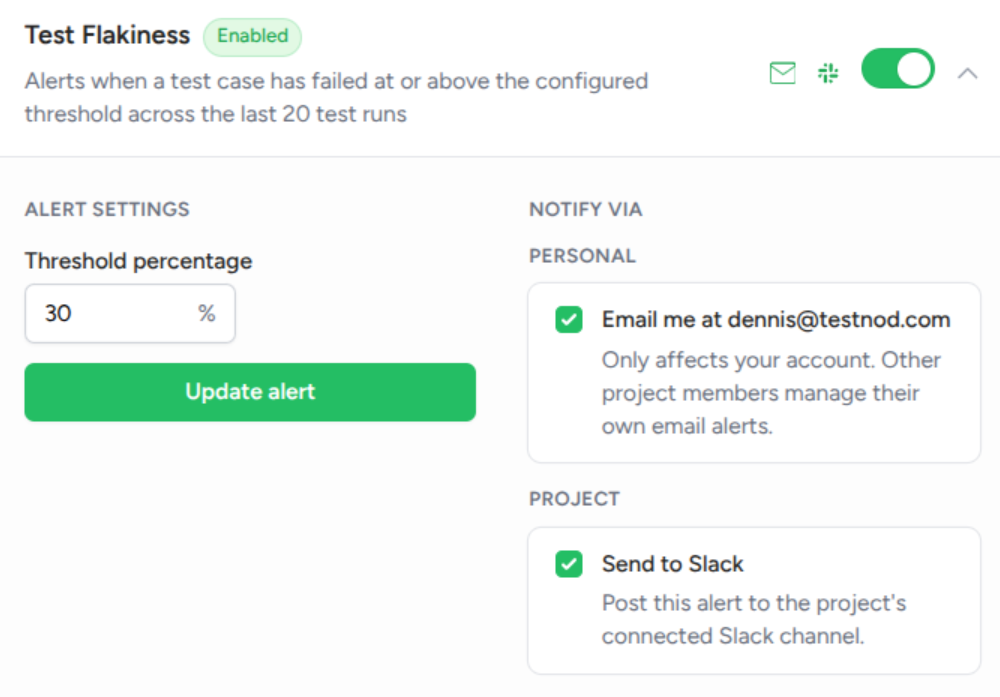
Each alert type carries its own toggle: performance regression, test flakiness, skipped test count creep, and failure rate spike.
What these preferences don't change
- Snoozing an alert. Snoozing silences an alert for everyone on the project and is done from the alert page rather than here. See Snooze, resolve, dismiss.
- The 24-hour cooldown. A single alert emails at most once a day no matter how anyone's preferences are set, so a test that keeps tripping the same alert won't flood your inbox.
- Slack notifications. Slack is connected per project by an admin and has no per-user toggle. See Slack notifications.
- Account and team email. Organization invites, password resets, and similar account messages go out when the action calls for them, not from these preferences. See Email notifications for the full list of what TestNod sends.