Signing in with email, Google, or GitHub
TestNod supports three sign-in methods: email and password, Google, and GitHub. You pick one when you create your account and can use any of them on future visits as long as the email address matches.
New accounts need a TestNod invite code, regardless of which method you use. You can request one from the TestNod homepage while the product is in private beta. If you arrived via an organization invite link, the invite itself takes the place of the invite code, so you do not need a separate one.
| Method | When to use |
|---|---|
| Email and password | The simplest path. Requires an invite code on first sign-up. |
| Sign in with your Google account. Requires an invite code on first sign-up. | |
| GitHub | Sign in with your GitHub account. Requires an invite code on first sign-up. |
Email and password
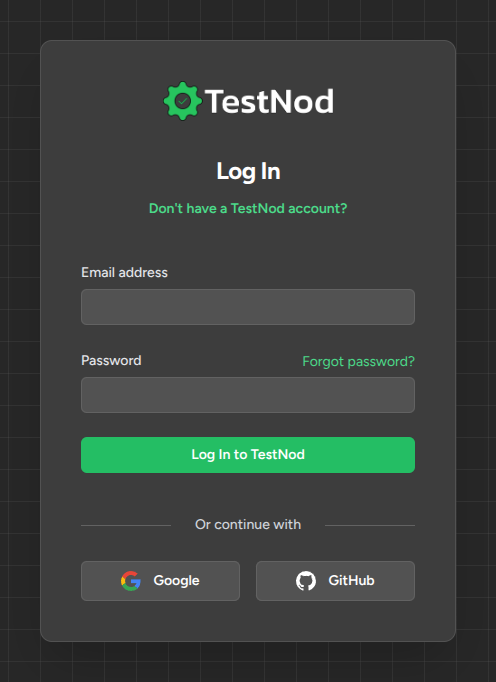
Open the sign-in page by clicking Log in from the TestNod homepage. Enter your email and password, then submit the form. On success, you land on your TestNod dashboard.
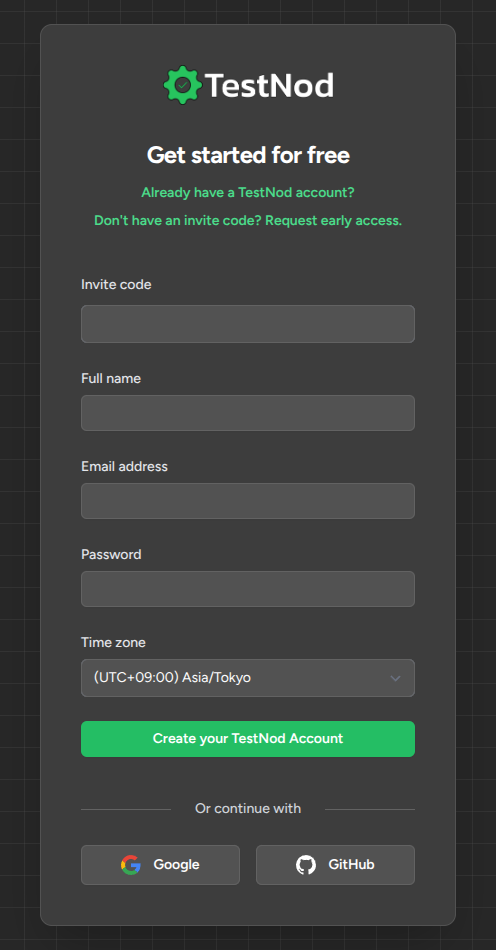
For a new account, click Don't have a TestNod account? to open the sign-up page. The form asks for your full name, email address, password, time zone, and a valid invite code. Without a valid code, sign-up is rejected with the message:
A valid invite code is required to create an account.
Invite codes are single-use. Once you redeem one to create your account, the same code cannot be used to create another.
Click the Google button on the sign-in or sign-up page and approve the OAuth consent screen on Google's side. TestNod requests only the email and profile scopes, and does not request calendar, drive, or any other Google data.
For a new TestNod account, you'll still need either a valid invite code or an organization invite link before the sign-up will complete. Returning users with an existing TestNod account sign in directly.
GitHub
Click the GitHub button on the sign-in or sign-up page and approve the OAuth app on GitHub. TestNod requests only the user:email and read:user scopes, and does not request repository or organization access.
As with Google, new accounts need an invite code or an organization invite link. Returning users sign in directly.
Switching between sign-in methods
You can sign up using one method and later use another. TestNod identifies your account by the email address tied to it. There are two cases to keep in mind:
- Matching email addresses. If your Google and GitHub email addresses match the email on your TestNod account, both will sign you into that same account.
- Different email addresses. If they do not match, each one creates a separate TestNod account on first sign-up.
If you end up with two accounts by mistake, contact [email protected] and the TestNod team can help you reconcile them.
Forgotten password
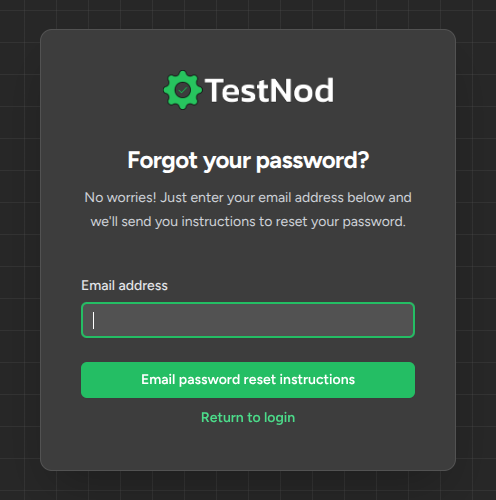
The sign-in page has a Forgot password? link next to the password field. Click it, enter your email address, and submit the form. If a TestNod account exists for that email, a reset email is sent. The link in the email expires 30 minutes after it is generated.
The reset flow only works for accounts that have a password set. If you have only ever signed in via Google or GitHub, no password reset email will arrive. Use the same provider you signed up with to sign in instead.
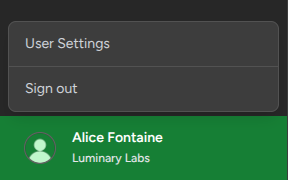
Signing out
The user menu in the TestNod dashboard has a Sign out action. On desktop, the menu sits at the bottom of the left sidebar, and on mobile it lives in the top-right corner. Selecting it ends your session on the current device only, so other sessions stay active until you sign out from each one.