
Email notifications for CI alerts and summaries
TestNod's emails fall into two groups. The first is the notifications you control per project: alerts and the weekly project summary. The second is account and team email that TestNod sends as needed, like organization invites and password changes. There is no per-run email and no pull request comments today. Alerts can also post to a channel through Slack notifications, which an admin sets up per project, and the rest of this page covers email.
What TestNod emails you
| When you get it | |
|---|---|
| Alert notification | An alert type you're subscribed to trips on a finished run: performance regression, test flakiness, skipped test count creep, or failure rate spike. The email carries the event details and a link to the alert. |
| Weekly project summary | Monday at 9 AM in your organization's time zone, recapping the past week's runs, durations, and alerts for the project. |
| Organization invite | The invite link goes to the person being invited. Other admins get a separate note that an invite was sent. |
| Password reset | The reset link, sent to you when you request a password reset. |
| Password changed | A confirmation sent to you after your account password changes. |
| Slack connection problem | A heads-up to organization admins when a project's Slack webhook stops working and Slack notifications are paused. |
Controlling which emails you get
The alert emails and the weekly summary are both opt-out, per user and per project, so you decide what lands in your inbox without affecting your teammates. These settings live on the project's Settings page:
- The Weekly project summary toggle is in the Email Preferences card.
- Each alert type has its own email toggle under Alert Configuration. Expand an alert type and look under Notify Via → Personal. The email icon beside each alert type is green when you're subscribed and grey when you're not, and hovering over it tells you which.
For the full reference on these toggles, see Notification preferences.
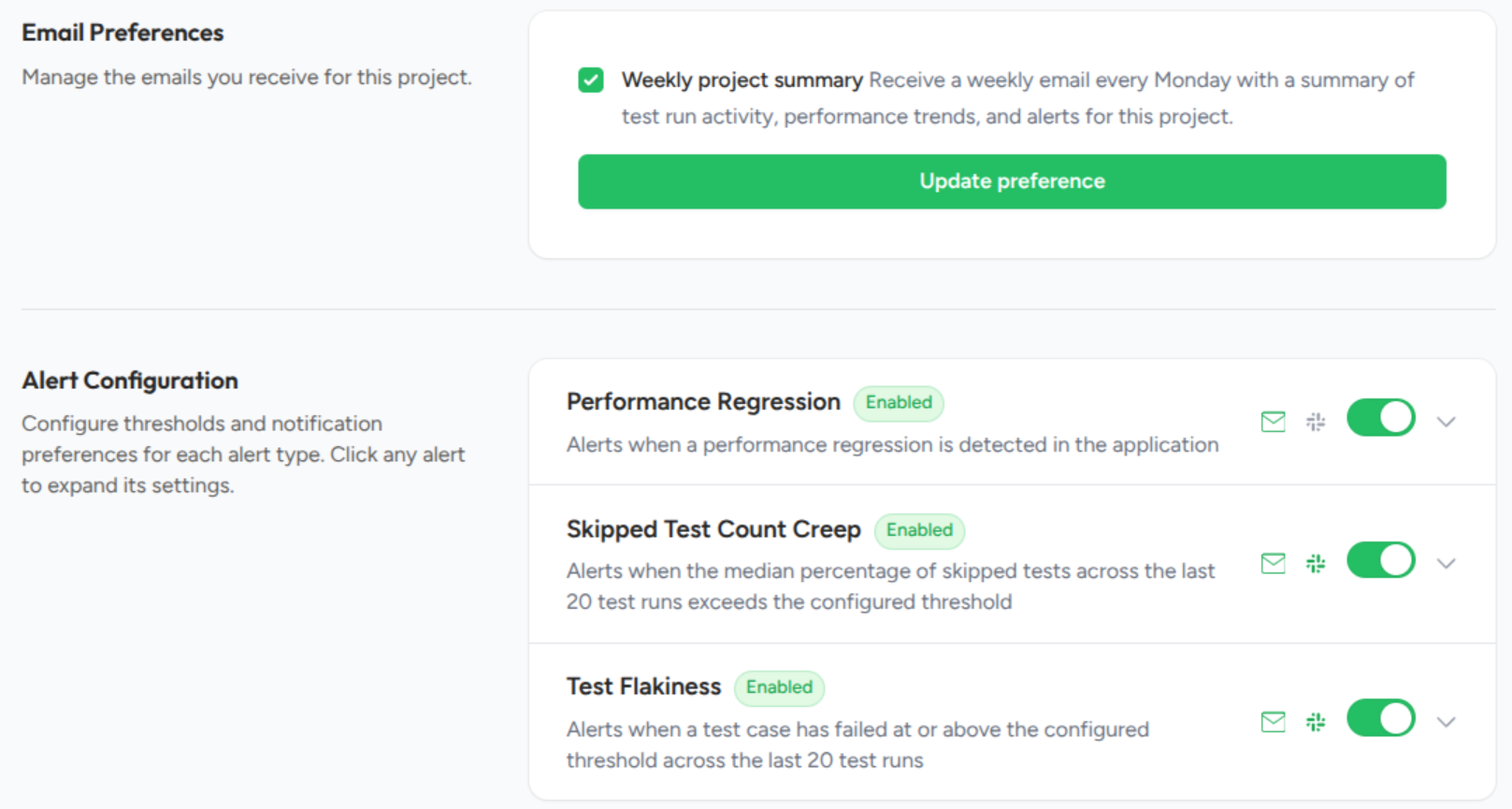
Two things to keep in mind:
- Snoozing is separate from opting out. If you only want to silence an alert for a while, snooze it from the alert page instead of opting out. See Snooze, resolve, dismiss.
- Alerts have a 24-hour cooldown. Even with everything turned on, a single alert sends at most one email per day, so a test that keeps tripping the same alert won't flood your inbox.
You're opted in by default
When you join an organization, you're subscribed to every notification type for every project. The defaults stay quiet on their own: alerts only fire when a check crosses a threshold, and the weekly summary is a single bounded email. Starting everyone opted in means nobody misses an alert because of a setting they never saw, and you can turn any of it off whenever you want.
Not getting an email you expected
Run through this checklist:
- Check your spam folder for one of the emails listed above.
- Check your preferences for the project. On the project's Settings page, a grey email icon next to an alert type, or an unchecked weekly summary box, means you've opted out.
- Check the alert's state. A snoozed alert still records events but does not email until the snooze expires. The alert page shows its current state.
- Check the cooldown. If the same alert already emailed in the last 24 hours, the next event waits until the cooldown ends.
- Check that the run finished processing. Alerts only run against runs that finished successfully, so a run that is still processing or that failed to process won't produce alerts.
If your organization filters inbound mail, you may also need to allowlist TestNod's sending domain so the emails get through. When none of the above explains it, email [email protected] with a link to the project and roughly when you expected the email.