
Automated alerts for flaky tests and regressions
TestNod alerts track patterns across multiple test runs and notify your team when those patterns cross configurable thresholds. The current alert types cover tests that fail intermittently, builds that get slower over time, skipped tests piling up unnoticed, and runs where a batch of tests fails at once. This page covers how alerts work in TestNod and what to expect once you enable them on your project.
What TestNod alerts you on
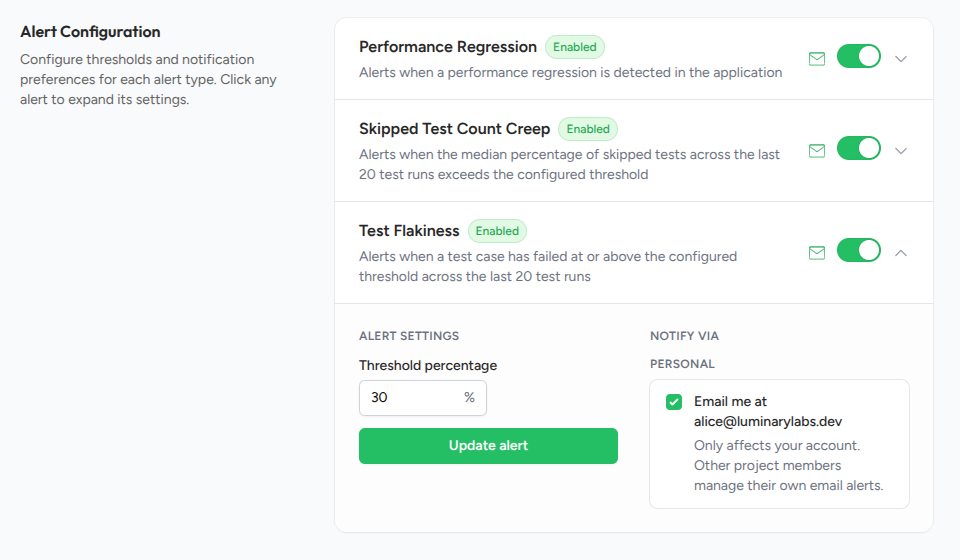
Each alert type is off by default. An admin enables them per project from the alert configuration page, and TestNod runs the enabled checks against new test runs as they finish processing.
| Type | Default threshold | What it catches |
|---|---|---|
| Performance regression | 15% over median | Builds that are getting slower over time. |
| Test flakiness | 30% failure rate | Tests that pass and fail without code changing. |
| Skipped test count creep | 10% median skip rate | Skipped tests piling up unnoticed. |
| Failure rate spike | 15 points over average | A run where a batch of tests went red at once. |
Each alert type has its own page with details on how its check runs and how to tune the threshold for your project.
How the checks decide when to fire
When a new test run finishes processing, TestNod compares it against the last 20 processed test runs that share the same set of tags. A run tagged smoke is compared against other smoke runs, not against a mix that also includes integration tests or end-to-end runs.
If you do not tag your runs, every run shares the implicit Default tag and the comparison happens across the whole project. That works for simple setups, but it's less useful once you have more than one test suite running.
Each check needs at least 20 same-tag runs before it can run. With fewer than that, no event is created until there's enough history to compare against.
Alerts and alert events
Two related concepts show up in the dashboard:
- Alert. A single ongoing record for each combination of project and alert type. The alert tracks whether the check is on or off, where the threshold is set, and whether it's currently snoozed.
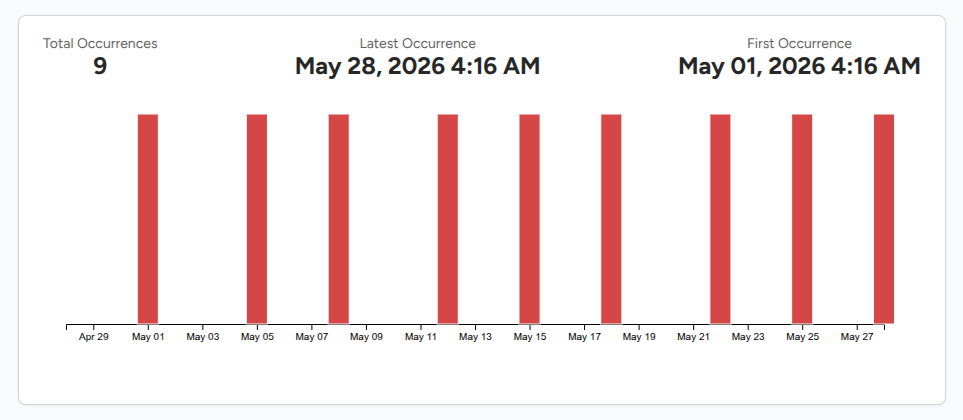
- Alert event. A single time the check triggered. The event includes the test run that triggered it, the test case involved (where applicable), and the numbers behind it.
The alerts page lists every alert across your organization. Clicking into an alert opens its event timeline, so you can see how often it has triggered and when it last did.
Notifications
When an active alert creates an event, TestNod emails the project members who have not opted out of that alert type. Notifications run on a 24-hour cooldown per alert, so an alert that keeps triggering does not flood your inbox. You get at most one email per 24 hours per alert.
You can opt in or out of each alert type from your notification preferences page. If you want to stop notifications without disabling the check, snooze the alert instead. The check keeps running and recording events, and notifications resume once the snooze expires. See Snooze, resolve, dismiss for the full state model.
Who can change what
| Action | Members | Admins |
|---|---|---|
| Read alerts and their event history | ✅ | ✅ |
| Snooze or unsnooze an alert | ✅ | ✅ |
| Manage their own notification preferences | ✅ | ✅ |
| Enable or disable an alert type | ❌ | ✅ |
| Change an alert's threshold | ❌ | ✅ |
| Resolve or dismiss an alert | ❌ | ✅ |
See Configuring alerts for the configuration page walkthrough, and the alerts API for reading alerts and changing their state from your own scripts.
Where to start
If you haven't uploaded any test runs yet, the Quickstart walks through getting your first run into TestNod. Once you have a handful of runs uploaded with the same set of tags, an admin can open the alert configuration page and turn on the alert types that are relevant to your project. With 20 same-tag runs of history in place, the checks have enough baseline data to detect changes.