
View JUnit XML system-out, system-err, and properties
When your test framework writes to <system-out>, <system-err>, or records suite-level properties in its JUnit XML report, TestNod stores that content and exposes it through a collapsible panel on the test run and test suite pages. That gives you a place to read exactly what your CI emitted without re-running the job or scrolling through CI logs.

Where the panel appears
The same panel shows up in two spots, with a slightly different set of tabs depending on which page you're on.
- Test run page. A panel titled "Test Run Details" sits below the failure patterns section. It contains the captured standard output and standard error written at the run level, meaning anything the test framework printed outside of a specific suite.
- Test suite page. A panel titled "Test Suite Details" sits between the summary cards and the test cases list. It contains the captured output and errors written from inside that suite, plus any
<properties>your test framework recorded for the suite.
Both panels are collapsed when you first land on the page. Click the header to expand it, then use the tabs along the top to switch between sections.
What each tab shows
Properties
The Properties tab is only available on the test suite page, and only when the suite's JUnit XML contained a <properties> block. Each entry is rendered as a name and value pair in the order your test framework wrote them.
JUnit XML uses <properties> for whatever a suite wants to record, including framework version, runtime metadata, random seed, environment hints, and custom tags from the runner. The values are passed through verbatim, so what you see in the panel is exactly what your test framework reported.
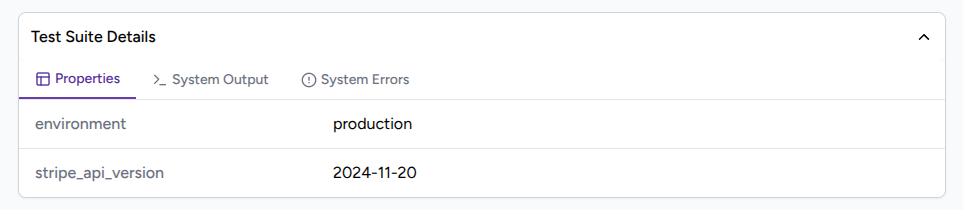
If the suite did not include a <properties> block, the tab shows "No properties available."
System Output
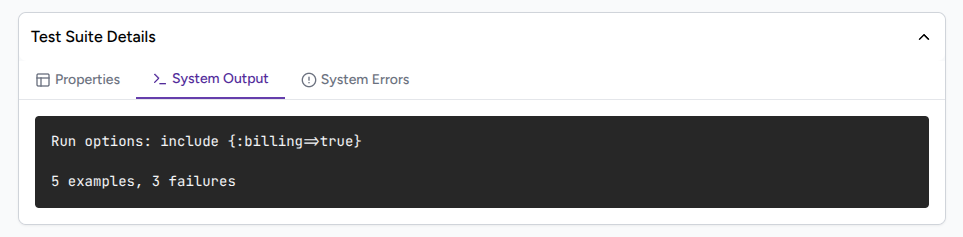
The System Output tab shows the contents of any <system-out> element associated with the run or suite. Most test frameworks let you opt into capturing standard output and embedding it in the JUnit XML, and when they do, this is where it lands.
The output is shown verbatim with no truncation. You'll see the same line breaks, ordering, and content your test framework wrote. Be mindful of what your tests print to standard output, because anything you log here is visible to every member of your organization who can view the run.
System Errors
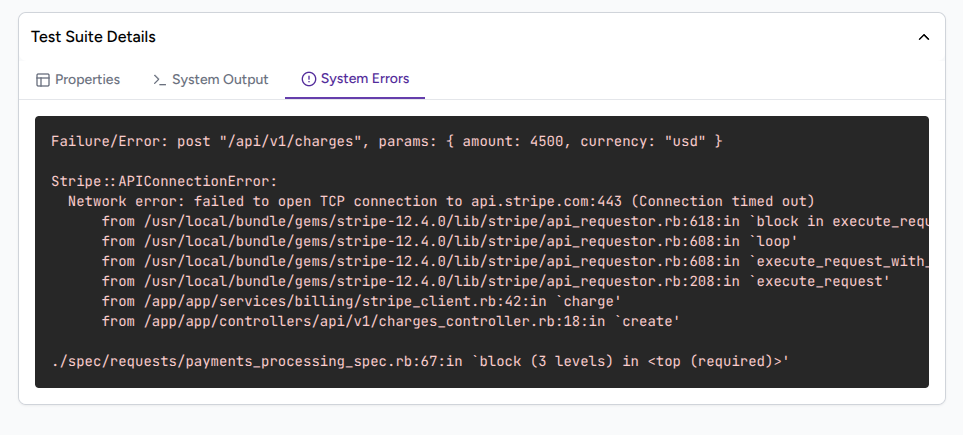
The System Errors tab shows the contents of any <system-err> element. Frameworks generally use this for captured standard error, which often includes backtraces, warnings, and anything written to stderr while the suite was running.
When a tab is empty
An empty tab is not a bug. Most CI test frameworks won't write <system-out> or <system-err> by default, and a missing <properties> block just means the suite didn't record anything. The fix lives in your test framework's configuration rather than in TestNod, and once your framework starts including those elements, they'll show up on the next run you upload.
For framework-specific notes on which elements TestNod reads and how it maps them, see the JUnit XML format reference.
Drilling down to a single test case
The Test Run Details and Test Suite Details panels are scoped to the run or the suite, not to a single test case. To inspect a specific case, open its test suite from the test runs table, then click the case name in the test cases list. The test case page shows the case's status, duration, failure or error metadata, and a history of recent runs alongside its pass rate and average duration.