
Slack notifications for CI test alerts
TestNod can post alerts to Slack so your team sees a performance regression, a flaky test, or a climbing skip rate without checking email. Notifications go to a channel you pick through a Slack Incoming Webhook, and every message links straight back to the alert that triggered it.
What you need
Setting up Slack notifications is a per-project task, and only organization admins can do it. You create a Slack app, add an Incoming Webhook pointed at one channel, and paste the webhook URL into the project's settings. The Slack options on the settings page are visible to admins only.
Create a Slack Incoming Webhook
Slack's Incoming Webhooks guide documents this in full. The steps are:
- Go to api.slack.com/apps and create a new app in your workspace, or reuse an existing one.
- Open Incoming Webhooks and toggle Activate Incoming Webhooks on.
- Choose Add New Webhook to Workspace, pick the channel you want alerts in, and select Authorize.
- Copy the webhook URL. It starts with
https://hooks.slack.com/services/.
Treat that URL like a password. Anyone who has it can post to your channel, which is why TestNod keeps it private and never shows it back once you save it.
Connect it to a project
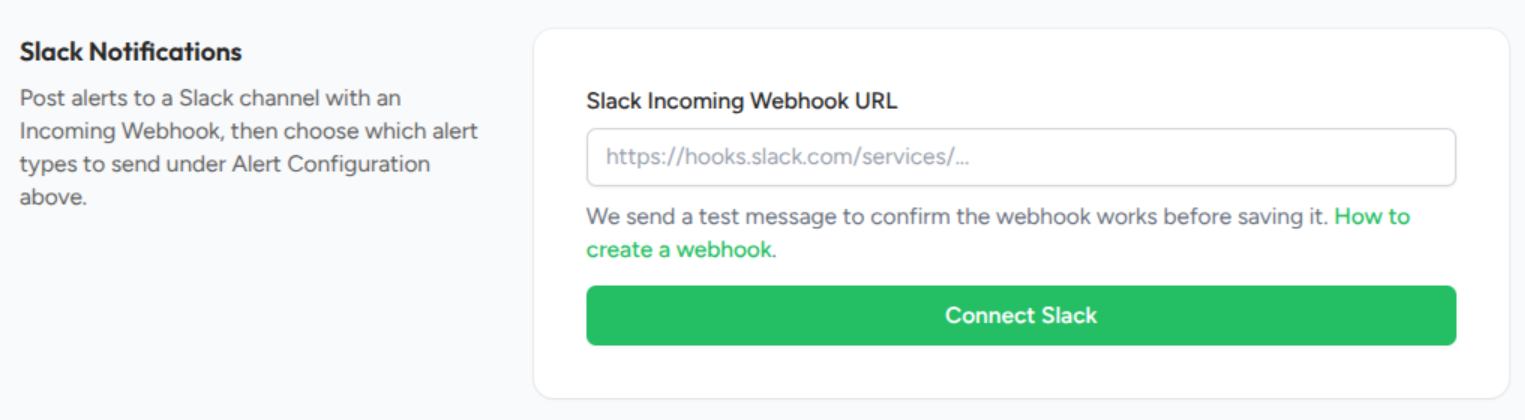
Open the project, go to Settings, and find the Slack Notifications card. Paste the webhook URL and choose Connect Slack. Before saving anything, TestNod sends a test message to the channel. If Slack rejects the URL, nothing is saved and you get an error explaining what to check. If it works, a confirmation message lands in the channel and the webhook is saved.
Choose which alerts post to Slack
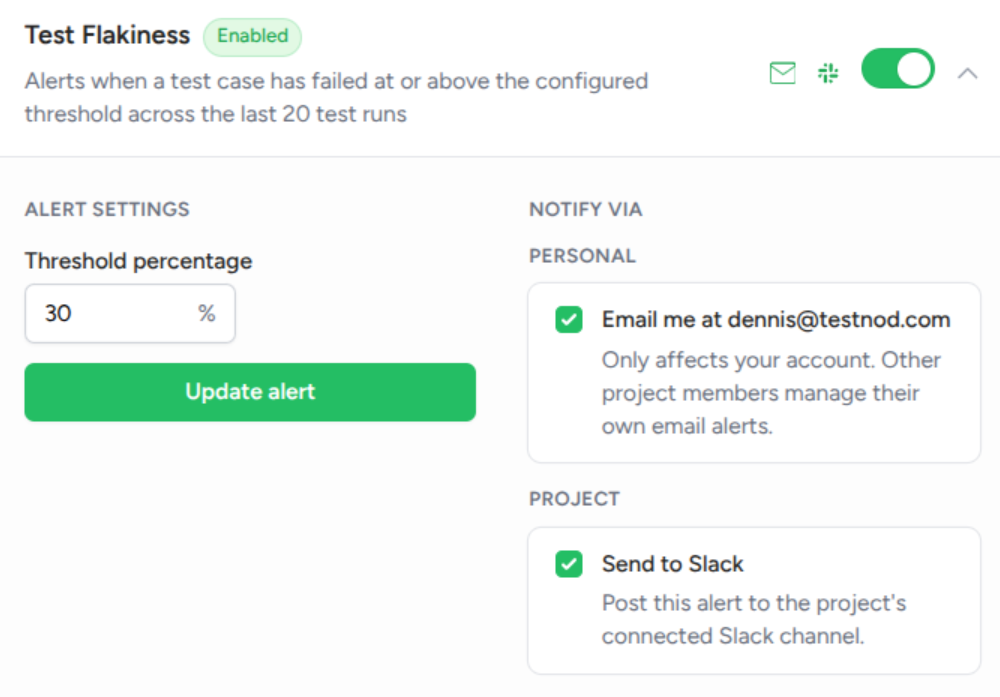
Connecting a webhook doesn't start posting anything on its own. Under Alert Configuration, expand an alert type and turn on its Send to Slack toggle. Each alert type (performance regression, test flakiness, skipped test count creep, and failure rate spike) is opt-in on its own, so you send only what matters to the channel. Slack delivery follows the same per-alert state as email, so a disabled or snoozed alert stays quiet on both.
How often TestNod posts to Slack
Two limits control how often TestNod posts. Every alert has a 24-hour cooldown, so a chronically firing alert produces at most one Slack message per day. On top of that, TestNod caps how many messages a single project sends per hour as a safety net against bursts. Neither limit needs configuring.
When a webhook stops working
Webhooks can be revoked, and their channel can be archived or deleted. When Slack reports that a webhook is permanently gone, TestNod pauses Slack notifications for that project, shows a banner on the settings page, and emails the organization's admins so someone can reconnect it. A temporary problem, like a rate limit or a brief Slack outage, is retried instead and doesn't pause anything. To get back up and running, paste a fresh webhook URL and connect again, which clears the warning and resumes delivery.
Disconnecting Slack
Use Disconnect Slack on the settings card to remove the webhook. TestNod asks you to confirm first. After that, alerts fall back to email only, and you can connect a new webhook whenever you want.